
WEBSITE USABILITY • APPOINTMENT BUSINESSES
A mobile booking-page checklist for appointment businesses
By Viral Digital Marketing · Published October 12, 2026
A calendar that looks tidy can still leave customers unsure whether they have booked anything. Test the complete journey: service, time, details, errors, confirmation and the handoff to your team.
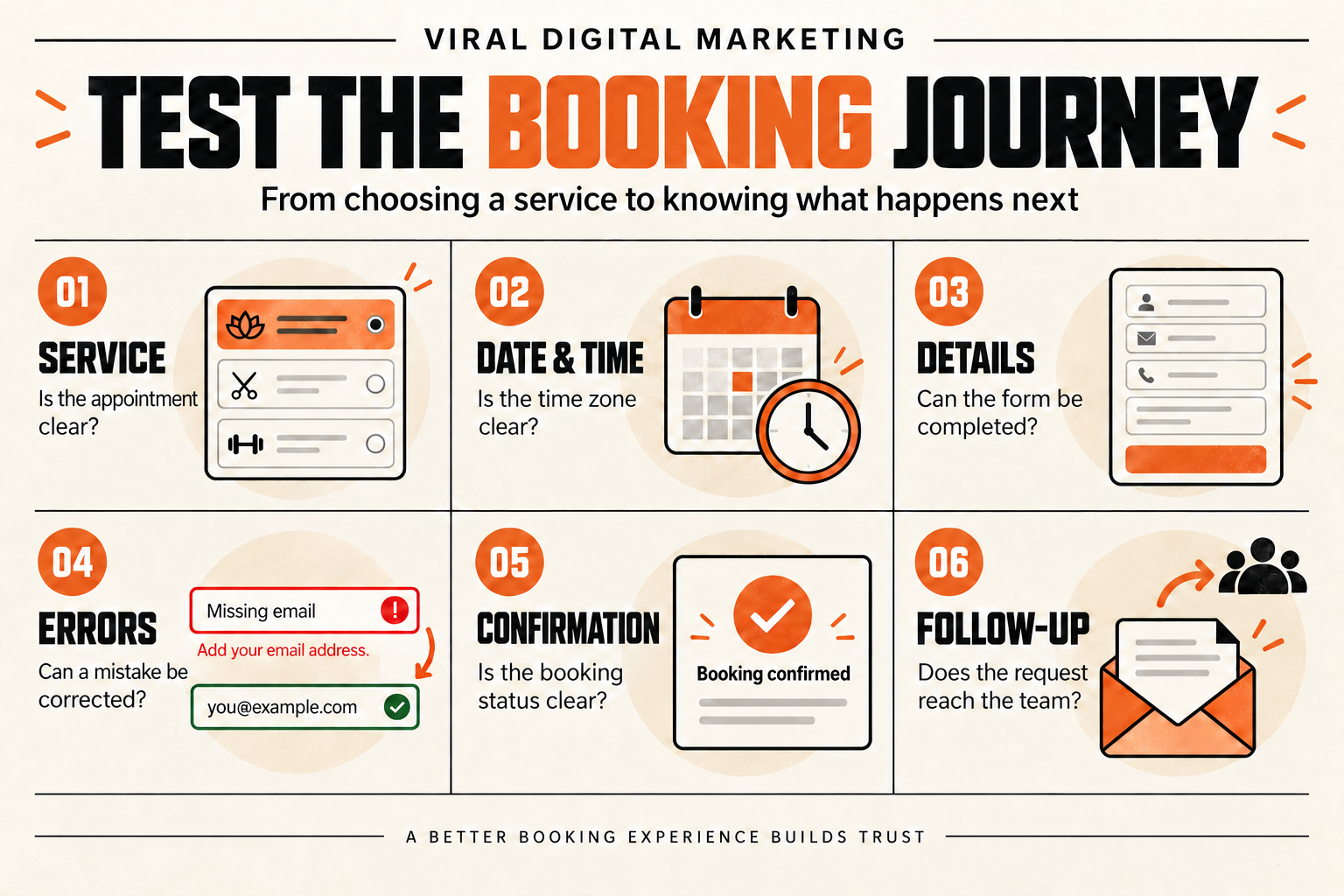
This checklist is for appointment businesses across the United States, including businesses serving Bakersfield and Santa Clarita. It focuses on testing a booking journey after the service page is written. For help explaining what a service includes before the form, start with our guide to a clear estimate page.
1. Make the appointment choice understandable
Open the same link a customer would use from your website or business profile. Can you tell which service you are selecting, how long it takes and where it happens? Distinguish an in-person visit, a phone consultation and a video appointment. If location or staff selection changes availability, make that relationship clear.
Compare each option with the service page. An introductory consultation should not suddenly become a different service in the calendar. Show any verified price, deposit or cancellation terms before someone commits. This is a content check: use the business’s actual policy rather than copying another company’s wording.
2. Check the date, time zone and empty-calendar state
Choose a date, move to another month and return to the original day. Check that the selected date remains obvious and unavailable times cannot be mistaken for available ones. If there are no appointments, explain a real next step, such as checking another date or contacting the team.
For remote appointments, confirm how the calendar displays the customer’s time zone and whether the confirmation uses the same one. For a location-based appointment, make the location and its local time clear. A label such as “10 a.m.” is incomplete when the visitor and the team may be in different zones. Check what the system actually does before writing instructions.
3. Use the page at a narrow width and with a keyboard
On a phone, look for clipped calendar controls, overlapping chat widgets and a submit button hidden behind a fixed banner. Increase text size and repeat the main steps. W3C’s reflow guidance describes how content should remain usable when the viewing area narrows, with exceptions for content that needs a two-dimensional layout. A calendar grid may need special handling; that does not make clipped instructions or an unreachable button acceptable.
Check the next-month arrows, time slots and back buttons individually. WCAG 2.2’s minimum target-size criterion specifies 24 by 24 CSS pixels or an applicable exception, including sufficient spacing. Larger, comfortably separated controls can be easier to use. Do not treat one size measurement as proof that the whole page is accessible.
Then use a keyboard: move through the controls, choose a service and a time, and return to the previous step. The current focus should be visible, and the order should make sense. Ask the developer or booking provider to investigate any step you cannot reach or leave.
4. Make an ordinary mistake and recover from it
In the agreed test, leave one required field empty or enter an incomplete email address. The message should identify the affected field and explain what to change. Correct the value and check that the other information remains available instead of forcing you to start again.
W3C’s form-notification guidance covers clear feedback for errors and successful completion. A red border alone is not a useful explanation. Test the message as text, its relationship to the field and whether keyboard users can reach the correction. If the booking tool is embedded, include that embedded form in the test.
5. Confirm what the final button actually does
Read the action before activating it. Does it request an appointment that staff must approve, or reserve a confirmed time immediately? The button, on-screen result and any confirmation message should describe the same outcome.
For an approved internal test, compare the selected service, date, time zone and location with the confirmation. If the request is pending, say what remains pending. If it is confirmed, show the appointment details and the actual route for changing or cancelling it. Avoid promising a response window unless the team can maintain it.
6. Verify the handoff beyond the success screen
Ask the assigned team member to find the clearly labelled test in the correct calendar or inquiry system. Verify that the service and appointment details arrived correctly and that someone owns the next step. A success screen demonstrates what the visitor saw; it does not by itself prove that the team received the booking.
Check any expected confirmation in the test recipient’s inbox, including whether its links lead to the right appointment. Record missing or delayed messages instead of treating them as delivered. Remove the test reservation through the normal cancellation process when the agreed check is finished.
Keep a small test record
Record the page URL, test date, device or viewport, browser, service chosen, expected outcome, observed outcome and person responsible for a fix. Retest the failed step after a change, then complete the whole journey once more. Repeat the relevant checks when you replace the form, change calendar rules or update a service.
Start with the first obstacle a customer would encounter. Fixing one broken time selector or misleading confirmation is more useful than polishing a button that already works. A completed checklist is a practical review, not a guarantee of bookings, rankings or full accessibility conformance.
Make your next step easier to use
Viral Digital Marketing is based in Bakersfield and serves businesses nationwide. Explore our website and marketing services, view our service locations, or request a free consultation about your website. For the broader customer journey, use our local SEO checklist.
Primary-source guidance checked October 12, 2026. All examples are illustrative.