
LOCAL SEO • BUSINESS INFORMATION
How to keep business hours and contact details accurate
By Viral Digital Marketing · October 3, 2026
A customer checks your hours, taps your phone number and decides whether to visit or inquire. Make those small steps reliable with a repeatable update routine.
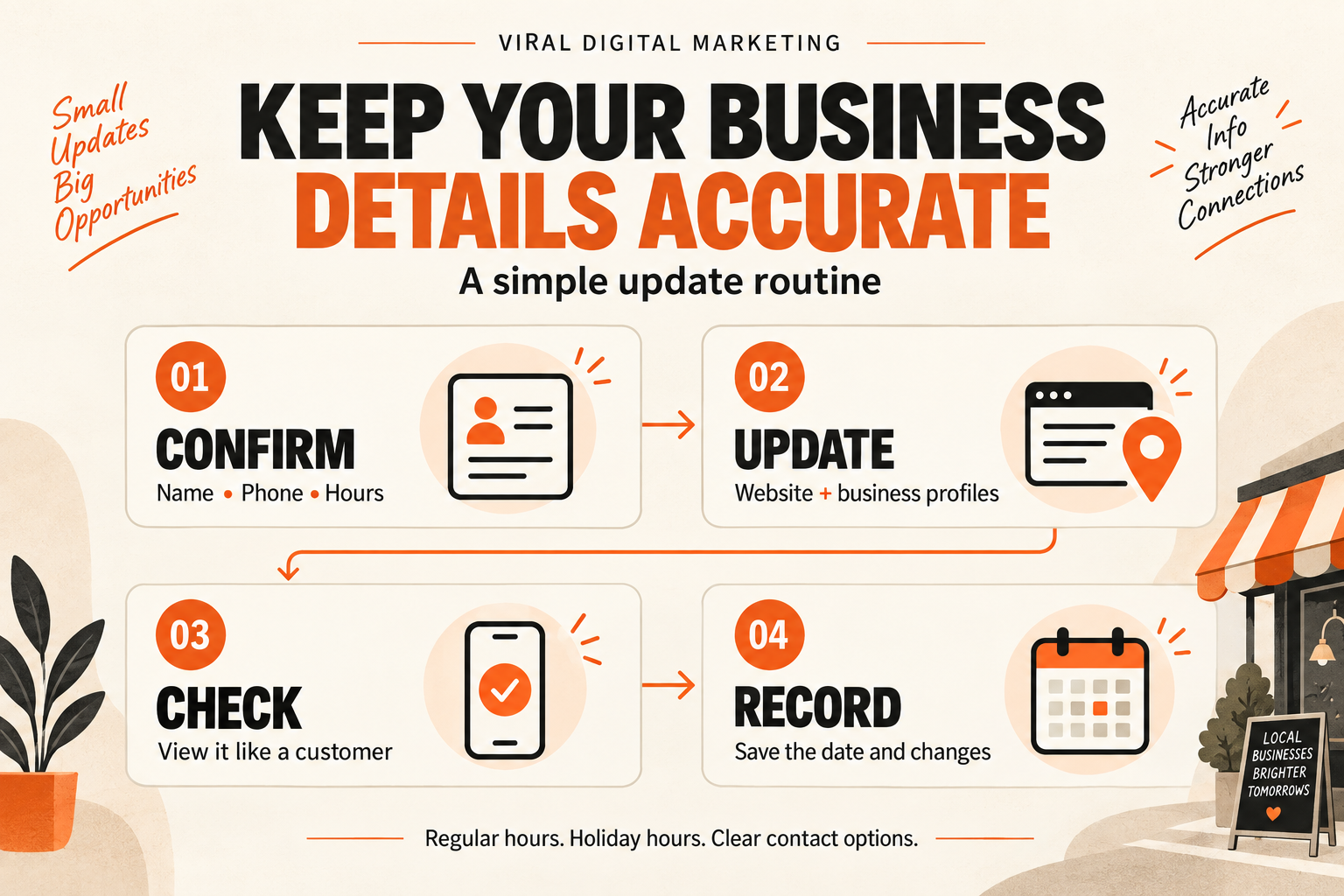
If your contact page says one closing time and your business profile shows another, the customer has to guess. A working website can still send someone to a closed shop or an old number. The fix is a small maintenance process with an owner, a list of places to update and a way to confirm the work.
This guide works for businesses across the United States, including teams serving Bakersfield and Santa Clarita. It expands the business-information step in our local SEO checklist into a practical workflow. Accurate details help customers act confidently; they do not guarantee a particular search position.
1. Create one approved business-information record
Start with a short shared document that the owner or manager has checked. Record what is true today before changing anything online. For businesses with multiple real locations, keep a separate record for each location so phone numbers and hours do not get mixed together.
- Name: the real business name customers recognize.
- Contact: the main customer phone number, monitored email address and correct contact or booking page.
- Location: the customer-facing address, if applicable, and the actual areas served.
- Hours: the normal weekly schedule, time zone, breaks and upcoming exceptions.
- Responsibility: who approves changes, who applies them and when the record was last checked.
Google asks businesses to use their real-world name and a phone number under the business’s direct control. An address and a service area also describe different things: a business that visits customers should not invent an office in each city it serves. Check Google’s business representation guidelines before changing those fields.
2. Separate regular hours from exceptions
Write down the normal schedule first. Google Business Profile’s main hours describe a typical week; separate opening periods can represent a break during the day. Follow the guidance for your business type, especially if you operate only by appointment. See Google’s instructions for editing business hours.
Next, list upcoming holidays, staff events and other short exceptions. Google provides special hours for temporary changes or closures of up to six consecutive days. For a closure lasting seven or more days, or an unknown period, its guidance says to use “Temporarily closed.” Services such as delivery or pickup with their own schedule can use “More hours.” Review Google’s special-hours guidance for the right option.
Keep your website equally clear. If your team answers calls from 9 a.m. to 3 p.m. Pacific, show that time zone when customers may be elsewhere in the country. If online requests can be submitted at any time, explain when the team responds. An always-available form is not the same as a staffed, 24-hour business.
3. Update the places customers actually use
Make a short inventory rather than trying to remember every profile. Start with your contact page, website footer, relevant location pages, Google Business Profile and active social profiles. Include booking platforms and directories that send real inquiries. If a menu, brochure or pinned social post displays old hours, add that to the list too.
- Approve the new facts. Confirm the effective date and whether the change is temporary.
- Update your website. Review shared sections and any pages where the same information appears separately.
- Update the relevant profiles. Use the correct location and appropriate hours fields.
- Record anything pending. A saved edit may still need review before customers see it.
- Check again after the change takes effect. Remove temporary notices when they are no longer useful.
Focus on whether the information means the same thing and reaches the right business. A misplaced digit or wrong closing time is urgent. A harmless difference in punctuation should not distract the team from a broken phone link.
4. Check the customer view on a phone
Leave the editing screen and open the published page. Read the hours as if you were planning a visit today. Can you tell which time zone applies, whether an appointment is needed and whether the business comes to you?
- Tap the phone link and inspect the number in the dialer before placing a call.
- Open the contact or booking link and confirm it reaches the intended business and location.
- Check that hours, phone numbers and long email addresses fit the mobile screen.
- Review the public profile, not just the information saved in its editing panel.
- For a form submission or test call, agree on an internal test with the team so it is recognized and checked.
For example, if a Santa Clarita service-area page routes inquiries to a Bakersfield-based team, make that arrangement clear. A visitor should understand the next step without assuming there is a local walk-in office.
5. Keep a change log that closes the loop
A lightweight log is enough. Use one row per change with these fields: date, approved detail, pages or profiles affected, person responsible, public check completed and next review date. Save the relevant page links so the next review starts in the right place.
Example, for illustration: “Holiday closure approved; contact page and Business Profile updated; public website checked; profile edit pending; manager to recheck before the holiday.” This is more useful than marking the whole task complete immediately after clicking Save.
Review the record whenever hours, locations, phone routing or booking tools change. A monthly check and a review before major holidays can catch stale details between those events. The best cadence is one your team can maintain consistently.
Put the routine to work
Choose one important customer path today: search result, website, contact action. Compare it with your approved record and fix the first mismatch. Then document the change so it stays fixed.
Viral Digital Marketing is based in Bakersfield and serves businesses nationwide. Explore our local SEO services and locations and nationwide coverage, or see our approach for Bakersfield and Santa Clarita. Tell us where customers get stuck so we can discuss a useful next step.
Google guidance checked October 2, 2026. Interface labels and available features can change.